Touchkio as Home Assistant frontend
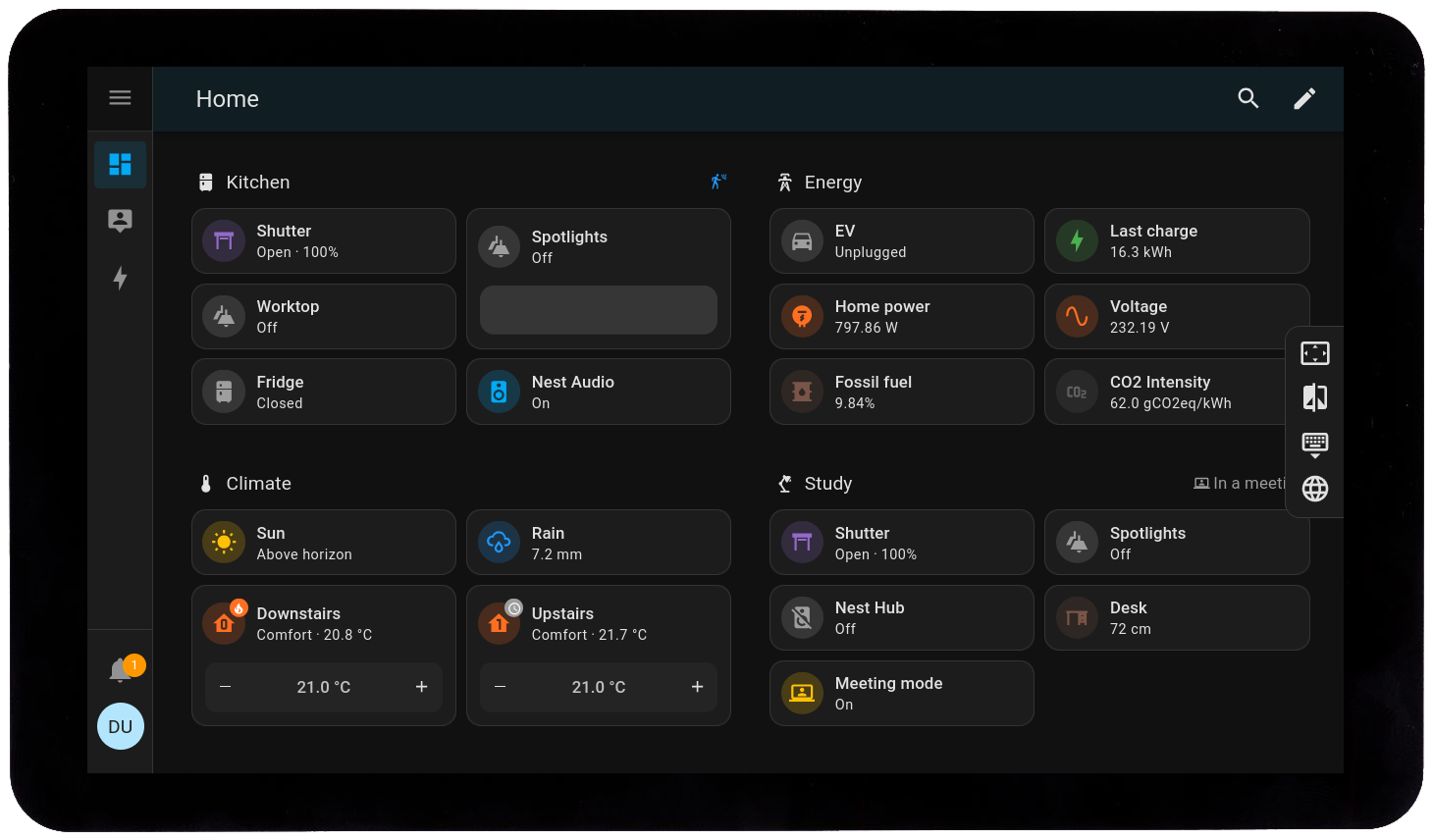
I’ve been running Home Assistant for a few years now, and the default Lovelace UI is fine — it works on a phone, on a laptop, on a wall-mounted tablet. But I also have a dedicated always-on display in the living room. But showing full Home ASsistant dashboard with all widgets I have? It’s overkill. Too many menus, too much chrome, and honestly, it’s a bit ugly at 100% zoom on a small screen.
That’s where Touchkio comes in. It’s an Electron-based kiosk application, that wraps Home Assistant in a clean, touch-optimized window. It handles the login, remembers credentials, and in combination with ‘Kiosk Mode’ HACS extensionit gives fullscreen dashbaord. It also exposes the device itself — CPU, memory, temperature, display power — as MQTT sensors back to Home Assistant.

What It Actually Is
Touchkio is a .deb packaged Electron app (also available as .zip for other distros). It launches a Chromium-based browser in kiosk mode pointed at your Home Assistant URL, with a few clever additions:
- Side panel widget — swipe/click from the edge for on-screen keyboard, brightness, zoom, navigation between dashboards
- MQTT integration — publishes device sensors (battery, CPU, temp, RAM, display status) and accepts commands (reboot, shutdown, brightness, keyboard toggle, screenshot, URL navigation)
- Credential storage — first run walks you through HA login via UI, stores encrypted in
~/.config/touchkio/ - Touch wake-up — configurable screen timeout and wake on touch
It’s not a custom dashboard builder. It is Home Assistant — just wrapped in a kiosk that behaves like an appliance.
Hardware I’m Using
| Component | What I Have | Notes |
|---|---|---|
| Board | Raspberry Pi 4 Model B, 4 GB | Pi 3 works but Electron is heavier; 4 GB recommended |
| Display | Waveshare 7” HDMI touchscreen (1024×600) | DSI or HDMI touch; USB-HID for touch |
| OS | Raspberry Pi OS (64-bit) with desktop | labwc (Wayland) recommended; X11 works too |
| Power | Official 5V 3A USB-C supply | Undervoltage kills touch reliability |
| Case | 3D-printed stand with VESA mount | Keeps cables tidy |
Minimum to get started: Pi 4 + HDMI/DSI touchscreen + Raspberry Pi OS with desktop (not Lite). Electron needs a compositor. Pi 3 might work but will be sluggish — Electron + Chromium is RAM-hungry.
The Setup (What Actually Worked)
The project docs assume Raspberry Pi OS with desktop (labwc preferred). Here’s the exact sequence:
1
2
3
4
5
6
7
8
9
10
11
12
13
14
15
16
17
18
19
20
21
22
23
# 1. Raspberry Pi OS (64-bit) WITH DESKTOP — not Lite
#    Enable SSH, set locale, hostname, etc. via raspi-config

# 2. Update
sudo apt update && sudo apt upgrade -y

# 3. Install Touchkio .deb (check GitHub releases for latest URL)
wget https://github.com/leukipp/touchkio/releases/latest/download/touchkio_1.0.0_arm64.deb
sudo apt install ./touchkio_1.0.0_arm64.deb

# 4. First run — launches setup wizard
touchkio
#    - Enter Home Assistant URL (http://homeassistant.local:8123)
#    - Enter MQTT broker details (optional but recommended)
#    - Log in to Home Assistant via the UI that opens
#    - Credentials saved to ~/.config/touchkio/

# 5. Enable auto-start (systemd user service)
systemctl --user enable touchkio
systemctl --user start touchkio

# 6. Enable linger so user service starts at boot without login
sudo loginctl enable-linger pi
That’s it. On boot, the desktop (labwc) starts, Touchkio launches automatically in kiosk mode, and you’re at your Home Assistant dashboard.
The MQTT Side (Why It’s Useful)
Once configured with MQTT, Touchkio publishes these sensors to Home Assistant:
| Sensor | Use Case |
|---|---|
sensor.touchkio_cpu_usage | Alert if Pi overheats/throttles |
sensor.touchkio_memory_usage | Catch memory leaks |
sensor.touchkio_temperature | Monitor thermal throttling |
sensor.touchkio_display_brightness | Know current brightness level |
sensor.touchkio_display_power | Is screen on/off? |
sensor.touchkio_battery | For UPS/HAT setups |
sensor.touchkio_network_* | IP, interface status |
sensor.touchkio_upgrades | Pending apt updates |
And it accepts these commands via MQTT:
1
2
3
4
5
6
7
8
9
10
11
12
13
14
// Turn display off
{ "command": "display_power", "value": "off" }

// Set brightness 0-100
{ "command": "display_brightness", "value": 50 }

// Toggle on-screen keyboard
{ "command": "keyboard_toggle" }

// Navigate to specific dashboard
{ "command": "navigate", "url": "/dashboard/energy" }

// Reboot the Pi
{ "command": "reboot" }
So your Home Assistant automations can dim the hallway display at night, wake it on motion, reboot a frozen kiosk remotely, or switch dashboards based on time of day.
Real Usage Scenarios
Coming Home, Hands Full
Groceries in both arms. The hallway display is already on because a motion sensor triggered display_power: on via MQTT. The Home Assistant dashboard shows the “Entry” view — I tap “Kitchen outlets” to light the under-cabinet strips. No phone, no voice, just a tap walking past.
Movie Night (One Tap)
The side panel lets me swipe between dashboards. I’ve set up a “Scenes” dashboard with big tiles. Tap “Movie night” — triggers the HA scene: dims lights to 15%, bias lighting on, TV input to HDMI 2, blinds down. One tap from the kitchen while grabbing drinks.
Bedtime Check
Standing in the hallway, I glance at the display. Kitchen outlets off. Living room TV off. Front door camera snapshot shows porch light on, nobody there. Tap “Bedtime” tile — kills every switch, arms alarm, thermostat to night mode. Then swipe side panel → “Display off” → screen goes black.
Power Awareness
The “System” dashboard shows the Pi’s own CPU, RAM, temperature — plus whole-house power from my energy meter. When the heat pump kicks in, I see 2.8 kW on the wall. When the dryer runs, 2.1 kW. It’s not a detailed energy dashboard — just a number. But visible on the wall means I actually notice when something’s drawing power it shouldn’t.
Guest Mode
Friends staying over. I don’t give them the Home Assistant app. I just tell them: “The screen by the door controls the lights.” They figure it out in 10 seconds. The side panel is hidden until you swipe — clean by default.
Remote Recovery
Display frozen? SSH in and systemctl --user restart touchkio. Or send MQTT reboot command from Home Assistant. Or check sensor.touchkio_memory_usage — if it’s at 95%, you know why.
What’s Missing (And Workarounds)
| Missing | Workaround |
|---|---|
| No native kiosk auth — anyone with physical access can use it | Mount high, or in a room guests don’t enter |
| No multi-user profiles on the kiosk itself | It’s a shared household display — that’s the point |
| Electron = heavier than a raw browser (~300-500 MB RAM) | Pi 4 4 GB handles it; Pi 3 struggles |
| Config changes require app restart | systemctl --user restart touchkio takes 3 seconds |
| First login needs keyboard/mouse/VNC | One-time only; after that credentials cached |
Troubleshooting Bits I Hit
- Touch coordinates off: Raspberry Pi OS has
xinput_calibrator(X11) or libinput config (Wayland). Run once, saves persist. - Screen doesn’t sleep: Check
display_powerMQTT sensor — if it’s stuck “on”, verify MQTT broker connectivity. - Electron GPU issues on Wayland: Add
--enable-features=UseOzonePlatform --ozone-platform=waylandto launch flags (in.config/touchkio/config.json). - MQTT disconnects: Set
mqtt.keepalive: 30in config; HA’s MQTT broker handles it fine. - Audio doesn’t work: PipeWire/PulseAudio works out of the box on Pi OS desktop. Volume controllable via MQTT
volume_setcommand. - Updates:
.debupdates viaapt—sudo apt update && sudo apt install touchkio(preserves config).
Is It Worth It?
If you have a Pi 4 and a touchscreen (or monitor + mouse), yes. The whole setup cost me ~€120 (Pi 4 4GB + Waveshare 7” touchscreen + case + power supply). A commercial smart display like a Google Nest Hub Max is €200+ and locks you into their ecosystem. This runs local, talks MQTT both ways, and I own the device.
The Electron overhead is real — ~400 MB RAM vs ~30 MB for a raw Go binary — but on a Pi 4 with 4 GB it’s a non-issue. What you get in return: a kiosk that feels like an appliance. Login persists. Screen sleeps/wakes. Brightness controllable. Device sensors in HA. Side panel for navigation without leaving fullscreen.
If you’re already deep in Home Assistant and want a dedicated wall display that behaves like a thermostat — always on, always ready, no friction — Touchkio is the most polished “wrapper” I’ve found. It’s not a dashboard builder. It’s Home Assistant, made kiosk-native.